 FDP Chrono
Help and contact
Support
For FDP Chrono on iPhone and iPad.
Questa pagina è disponibile anche in italiano.
Contact
For support, bug reports or feedback, contact: logbooktimecalc@gmail.com
If a result looks wrong, please include the selected regulation, the reporting and block-in times, the modules you turned on and, if you can, a screenshot.
Setting the times on the dial
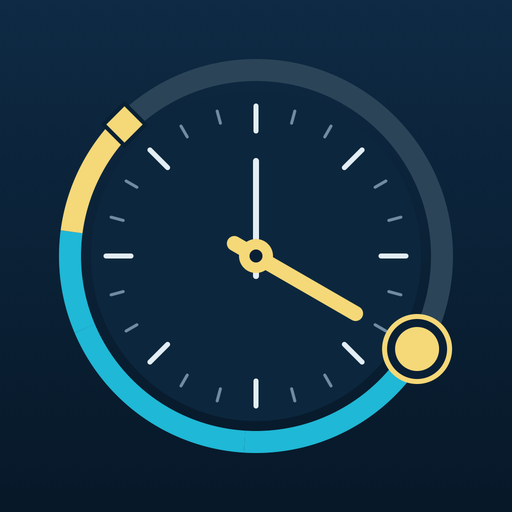
Tap "Reporting" or "Planned block-in", then drag the gold handle around the 24-hour dial. The handle moves minute by minute and snaps to the quarter hour; the white knob at the tip of the minute hand sets the exact minute. Passing midnight changes the date. You can also set the date and time in the fields under the dial.
When you are not editing, the dial shows the current time. Tap a time to change it, and tap outside the dial to go back to the clock. With a keyboard, the arrow keys move the selected time by 15 minutes, Shift + arrows by 1 minute and Page Up / Page Down by 60 minutes; with VoiceOver, swipe up or down to adjust it by 15 minutes.
Reading the result
The cyan arc is the planned duty, the gold arc is the margin and a red arc shows any excess beyond the maximum FDP. The result gives the FDP end time, the maximum FDP, the margin or excess, the minimum rest and the earliest next reporting time.
On iPhone, tap the panel at the bottom (or drag it up) to open the Result, Duty and Modules tabs. On iPad, the full result is always on the left and the Duty and Modules tabs are on the right.
Choosing the regulation
In the Duty tab, under "Duty profile", tap "Edit profile" and change "Selected rules": EASA, UK CAA, FAA Part 117, Transport Canada, CASA (Australia) or "OM · manual". For more than 80 other countries the app links to the national authority, so you can enter the limit from your OM.
Modules
Turn modules on in the Modules tab. The available modules depend on the selected regulation:
- Standby and reserve: EASA and UK (airport standby, other standby, reserve), FAA (airport standby, short-call and long-call reserve), Canada (reserve), Australia (standby with or without a sleeping place).
- Delayed reporting: EASA and UK.
- Split duty: EASA, UK, FAA and Australia.
- Planned extension: EASA and UK. Augmented crew with in-flight rest: EASA, UK and FAA.
- Night duty and WOCL: EASA, UK and FAA.
- Minimum rest: all five, at home base and away.
Standby, delayed reporting and split duty times appear as coloured rings and chips on the dial: tap one to select that time and move it with the handle.
Building your OM with "Customise"
In "Edit profile", set "Selected rules" to "OM · manual" and choose a Base: EASA, UK, FAA, Canada, Australia, or "None — fixed limit only" to enter just one maximum FDP. With a base, sectors, modes and modules of that regulation come back, and the "Customise" button opens a page with every value the base uses.
You can change FDP tables as a whole (for example 30 minutes less on every cell) or cell by cell, and the other values the base provides: extensions, standby and reserve, delayed reporting, split duty, night and WOCL, rest. Under each changed value you see the base value. You can reset one value, a section or everything. Changes are saved as you make them.
Why is a value orange?
A value turns orange when it is less restrictive than the base regulation, with the note "Valid only if approved by your authority." The app does not block it: use it only if your operator's OM, approved by your authority, provides for it. The result shows when an orange value decided today's limit, and which of your OM values were used.
What the app does not calculate
FDP Chrono calculates one duty at a time. It does not check cumulative limits or roster history, commander's discretion, unforeseen-circumstance extensions or FRM/FRMS schemes, and it does not work out acclimatisation for you: you choose it. It applies flight crew rules for commercial air transport, not cabin crew rules. Tap the book icon in the header ("Sources and assumptions") for the "Rules not calculated" list of the selected regulation and the links to the official sources.
Languages
The app is available in 34 languages. It follows your device language; you can change it in Settings (the gear icon in the header).
Is the result official?
No. FDP Chrono is a planning aid: it does not replace your operator's operations manual, FRM or the authority's rules, which always remain the reference. It is not affiliated with EASA, the UK CAA, the FAA, Transport Canada or CASA.
Privacy
FDP Chrono collects no data and works offline. Read the full Privacy Policy.